Most remote teams don’t suffer from a lack of tools; they suffer from a lack of protocol.
In a physical office, protocol is understood by daily social interaction. You see a teammate with headphones on and know not to disturb them. You overhear a conversation and realize a project direction has changed. In a remote environment, these cues disappear, and you can miss them.
Many teams try to fill that vacuum by adding more remote tools (Slack, Notion, Asana, Loom, Miro), but without the best protocols, those tools just create more noise.
At DistantJob, we don’t just find you a developer; we ensure they know how to communicate. Here is the framework we recommend to our clients for surviving and thriving in remote meetings.
The Tool vs Protocol Gap
The best remote tools provide the capability to communicate, but protocols clarify how to do it. If there isn’t a protocol for information, a team member might check Slack, then email, then the project management tool, just to find one link. This is “work about work.”
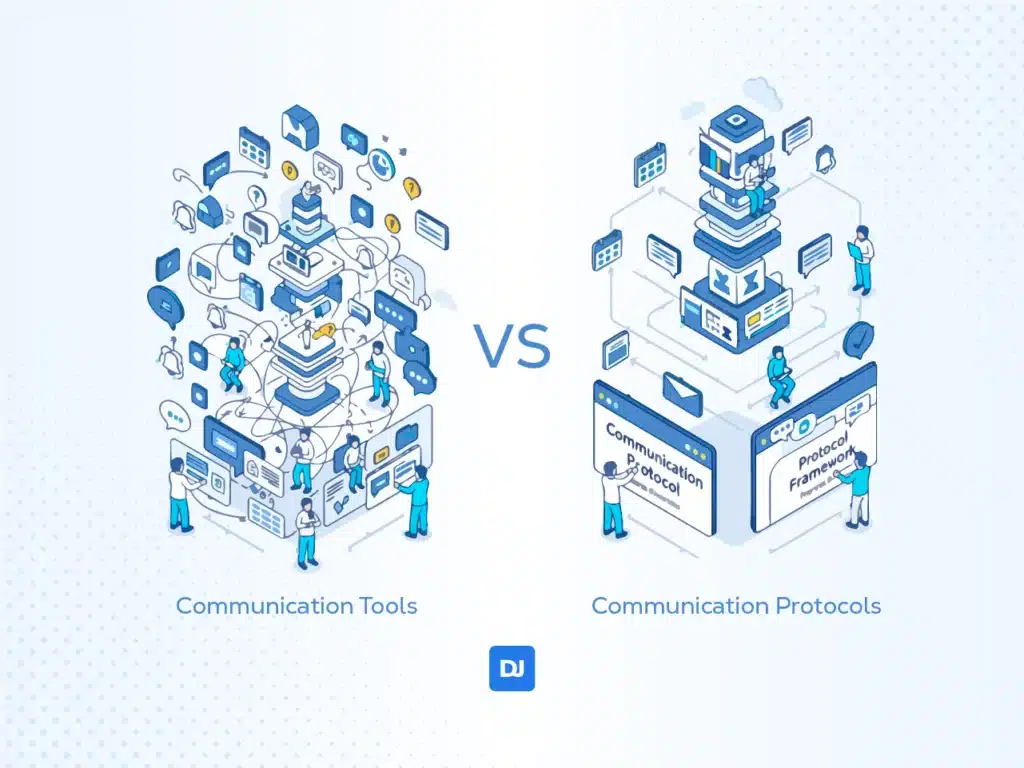
A protocol creates a Single Source of Truth, ensuring that everyone knows exactly where to look. It reduces the cognitive load of information search. Below is an example of how protocols work in contrast to how each tool functions.
| Feature | The Tool | The Protocol |
| Urgency | Slack / Teams | “Only @mention someone if a response is needed within 4 hours; otherwise, use email or common chat.” |
| Visibility | Jira / Linear | “Update ticket status by EOD every Friday so no one has to ask for a status update.” |
| Availability | Google Calendar | “Block ‘Focus Time’ from 9 AM to 11 AM. During this time, Slack notifications stay off.” |
| Decision Making | Zoom | “No meeting starts without an agenda; no meeting ends without documented action items.” |
The “Camera On” Culture (But Why?)
Turning your camera on is about signaling presence, respect, and authority. It is highly recommended when you are the host or speaker. If you are leading the meeting or presenting, your camera should be on. It is difficult for an audience to engage with a “black box,” and your non-verbal cues (nodding, hand gestures) help land your points.
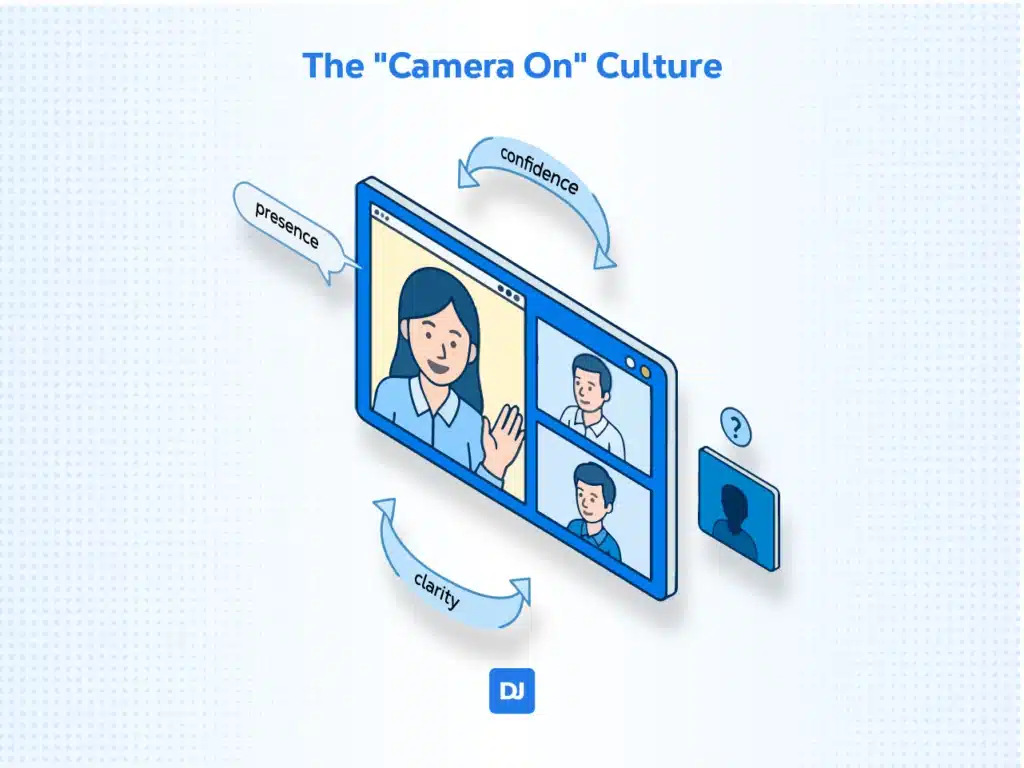
It’s also good to keep the camera on if your meeting has around 5-7 people. The absence of a camera can feel like “hiding behind a wall.” Video helps prevent people from talking over each other by providing visual cues that someone is about to speak.
When meeting a new client or colleague, video is essential for building rapport and “humanizing” the digital connection. And finally, during performance reviews, conflict resolution, or strategic brainstorming, seeing facial expressions reduces the risk of misinterpretation.
Therefore, you shouldn’t just say “turn it on.” Explain that visual cues prevent misinterpretation of tone, which is the #1 cause of friction in offshore teams.
When to Turn Your Camera OFF
Turning the camera off is a tool for managing focus and energy. You should feel comfortable going dark when there are more than 20 people present, and/or when you are there primarily to listen. Having your camera on adds unnecessary visual noise for others at Google Meet or Zoom. It also drains your own cognitive energy.
If your audio is lagging or your connection is unstable, turning off the video is the first step to prioritizing your voice clarity. This is why we at DistantJob test all our candidates on video during the vetting process: to ensure they are comfortable with high-bandwidth communication.
If you must keep your camera off in a setting where others are on, it is best practice to drop a quick note in the chat: “Keeping my camera off today to save bandwidth/taking notes, but I’m here and listening!”
For sessions lasting over 90 minutes, it is standard etiquette to allow “camera-off breaks” to reduce sensory overload. Moreover, if you are a support person taking notes or monitoring a live server, turning the camera off prevents others from being distracted by your typing or side-eye movements.
Finally, if you need to have a quick snack or a family member enters the room, briefly toggling the camera off is more professional than leaving it on.
| Meeting Type | Camera Protocol | Why? |
| 1-on-1 / Small Team | On | Builds trust and allows for non-verbal cues. |
| Client-Facing | On | Shows professionalism and engagement. |
| Presentation / Training | On (Speaker) / Off (Audience) | Focuses attention on the speaker/content. |
| Large Info Session | Off | Reduces “Zoom fatigue” and bandwidth strain. |
| Brainstorming | On | Encourages active, collaborative energy. |
Asynchronous Pre-Reads (The “No Meeting” Rule)
The biggest protocol failure in remote teams is treating remote work like office work, but on camera. Time is a company’s most expensive resource, and “syncing” (meeting in real-time) should be reserved for high-value interactions that require immediate back-and-forth.
If it can be an email, it shouldn’t be a meeting. We train our candidates to write detailed daily stand-ups so that when you do meet, it’s for decision-making, not status updates.
1. The “Status Update” Trap
In many traditional offices, meetings are used to update everyone on what happened. This is often inefficient because while one person speaks, others tune out if the information doesn’t affect them.
Think about it: You can read a status update in 30 seconds, but hearing it takes 3 minutes.
Moreover, meetings stop deep work for information that could have been consumed at any time.
2. The Power of Written Stand-ups
By training employees to write detailed daily updates (often in Slack, Teams, or email), you create a searchable record. Anyone in the company can see progress without asking for it. Writing forces a level of clarity that verbal updates often lack, and if a decision-maker joins a project late, they can read the “paper trail” of daily updates to understand its progress.
3. Meetings Should Be Reserved for Decision-Making
When you remove the “What are you doing?” part of a meeting, you are left with the “What should we do next?” part. This shifts the energy of the room. Instead of Status Report meetings, opt for Decision Meetings.
| Feature | Status Meeting (Inefficient) | Decision Meeting (Efficient) |
| Primary Goal | Information transfer. | Reaching a consensus or solving a blocker. |
| Preparation | None; show up and talk. | Everyone reads the written updates beforehand. |
| Tone | Passive and repetitive. | Active, collaborative, and analytical. |
| Outcome | “I know what you did.” | “We have a plan for the next obstacle.” |
The “Pass the Mic” Technique
The “Pass the Mic” technique is a high-leverage leadership habit designed to bridge the proximity gap: the psychological and communicative distance that naturally occurs when some participants are physically together while others are on a screen.
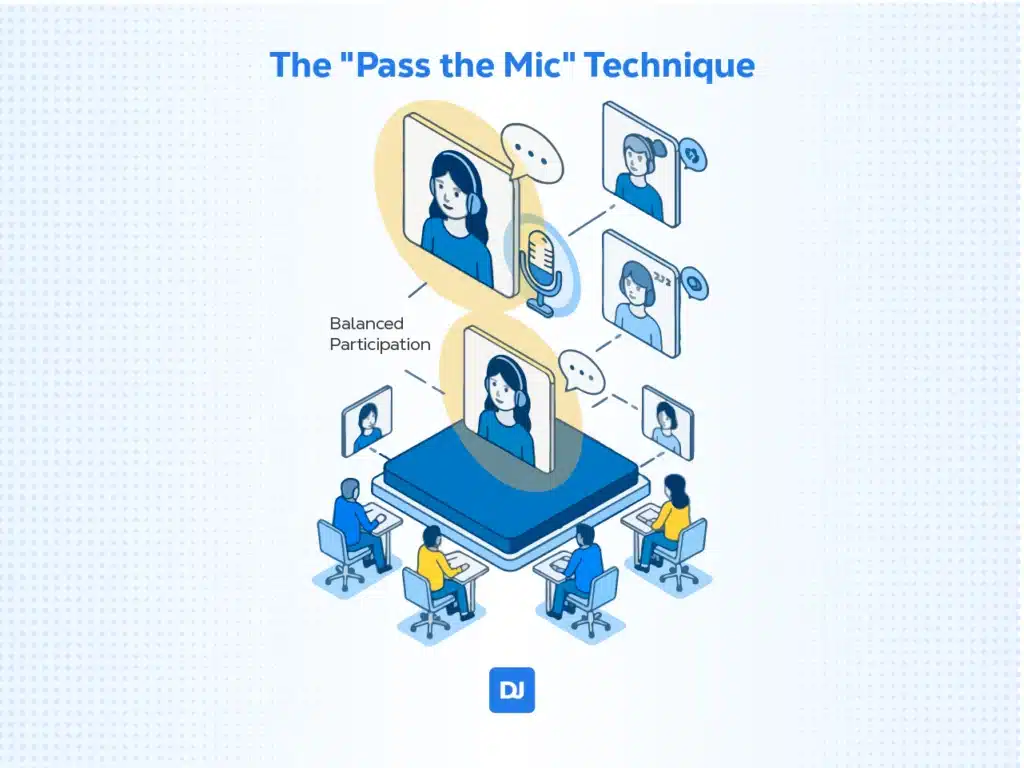
In a hybrid meeting (some in office, some remote), the remote person often stays silent. We advise clients to explicitly ‘pass the mic’ to remote staff first. Here is a breakdown of why this technique is so effective and how to implement it.
Why Remote Silence Happens
In a hybrid environment, in-person participants benefit from high-fidelity cues: they can see body language, hear side-whispers, and use eye contact to “claim” the floor. Remote participants face a latency of entry.
By the time a remote worker unmutes or finds a gap in the conversation, the local group has often moved on to the next topic. Over time, this leads to meeting fatigue and a feeling of being a “second-class citizen” in the company.
The “Remote-First” Priority
By passing the mic to remote staff first, you invert the traditional power dynamic. Remote workers contribute when the topic is fresh, rather than trying to add a “footnote” at the end. It forces the local room to acknowledge the digital faces on the screen immediately, setting a tone of inclusion for the rest of the call.
In a corporate environment, visibility is performance. If a remote worker is never heard, they feel invisible, which is the primary driver of “quiet quitting” or seeking new roles. Therefore, when you hear from remote staff first, you prevent the echo chamber, leading to more diverse input and better decision-making.
To make this work, the meeting leader must act as a facilitator, not just a speaker.
| Step | Action | Why it works |
| The Setup | “Before we open this up to the room, I want to hear from our remote team.” | Sets clear expectations and pauses the local momentum. |
| The Direct Call | “Sarah, as you’re joining us remotely, what are your initial thoughts on the budget?” | Removes the “unmute anxiety” by giving a specific person the floor. |
| The Buffer | Wait 3–5 seconds after asking. | Accounts for audio lag and the time it takes to find the unmute button. |
To potentially increase your success, have one person in the physical room act as the advocate for the chat thread and “hand-raises” to ensure remote voices aren’t missed. Ensure the remote teammates’ gallery view is projected onto a large screen in the room, rather than tucked away on a laptop.
Recommended Tool Stack (The Legacy Content)
It doesn’t matter if you use Zoom or Teams; what matters is the audio quality. We require our candidates to have noise-canceling hardware before day 1. As remote working gains popularity, software companies create better tools to support it. That’s definitely true with video conferencing. While a few years ago, grainy video was the best you could expect, today’s software is polished and professional and packed with features that support remote teams. Here are a few of the best.
Microsoft Teams
Microsoft Teams is a central hub for remote work, moving beyond simple video calls to provide an all-in-one ecosystem for collaboration. It is particularly useful for remote meetings because it manages the entire lifecycle of a meeting—before, during, and after.
Remote work often suffers from “context switching.” Teams fixes this by keeping everything related to a meeting in one place. For example, it syncs directly with Outlook, allowing you to see everyone’s availability and time zones instantly.
You can start a chat thread within the meeting invite to share agendas, pre-read documents, or ask questions before the call even starts. Organizers can message participants waiting in the virtual lobby to provide updates (e.g., “Starting in 2 minutes”).
Teams uses AI to place participants in a shared digital background (like a lecture hall or café), which reduces “meeting fatigue” and makes it easier to pick up on non-verbal cues. It also has several tools, such as:
- PowerPoint Live: Allows presenters to see their notes and the audience, while attendees can navigate slides privately without interrupting the flow.
- Microsoft Whiteboard: An infinite digital canvas for real-time brainstorming and sketching.
Powered by AI, Teams provides a summary of the meeting, including automatically generated notes, tasks, and @mentions of your name, with no need for a plugin. The meeting chat remains active in your “Chat” tab, allowing the team to continue discussing action items or sharing follow-up files.
Zoom
Zoom remains a titan of purpose-built video conferencing, though its feature set has evolved far beyond simple calls. While the free tier still allows for 100 participants (with a 40-minute limit), Zoom’s Enterprise plans now support up to 1,000 attendees as standard, with “Large Meeting” add-ons extending that even further.
Zoom has successfully pivoted into a full “Workplace” platform. It integrates Zoom AI Companion, which can summarize meetings in real-time and draft follow-up emails. Its “Team Chat” functionality now rivals Slack for file sharing and persistent group collaboration. A key differentiator remains its flexible recording: you can save sessions to the cloud for instant sharing or locally to a device for offline review.
Google Meet
Google Meet has evolved from a simple video tool into a deep collaboration hub. Its biggest advantage is that it is entirely browser-based; there is no software for clients or freelancers to download, which removes a major barrier to joining calls.
The free version allows for 100 participants with a 60-minute limit (more generous than Zoom’s 40 minutes). Paid Workspace plans increase this to 500 or even 1,000 participants for Enterprise users.
In 2026, Google has integrated “Gemini” directly into Meet. It can now “Take notes for me,” automatically generating a summary and action items in a Google Doc after the call ends. It also offers “Studio Look” and “Studio Sound,” which use AI to digitally enhance your lighting and audio quality in real-time.
If you use Google Calendar, Drive, or Docs, the integration is seamless. You can start a meeting directly from inside a Google Doc to collaborate on a live file or view your team’s availability instantly via Calendar.
| Feature | Zoom | Google Meet | Microsoft Teams |
| Best For | Advanced webinars & large events | Quick, browser-based calls | Heavy Microsoft 365 users |
| Free Limit | 40 Minutes | 60 Minutes | 60 Minutes |
| Installation | App required for the best experience | None (Browser-based) | App recommended |
| AI Assistant | Zoom AI Companion | Gemini AI | Copilot |
| Max Capacity | 1,000+ | 1,000 (500 interactive) | 1,000 (300 standard) |
Modern Paid Alternatives
While Zoom and Microsoft Teams are favored in corporate environments, several specialized tools have taken the lead for specific business needs:
ConnectWise ScreenConnect (formerly Control)
If your primary goal is client support rather than just “meetings,” ScreenConnect is the industry standard. It allows for a fully white-labeled experience—using your company’s branding—and provides deep remote-access tools that go far beyond simple screen sharing.
TeamViewer
TeamViewer has leaned heavily into Enterprise AR (Augmented Reality) and IoT. It is the go-to solution for remote managers who need to access “unattended” machines (like servers or digital signage) or provide technical guidance to field workers using smart glasses. Its security protocols remain among the most rigorous in the industry.
GoTo Connect (formerly Join.me)
The “Join.me” brand has been retired and integrated into the GoTo ecosystem. GoTo Connect is a unified communications platform that merges VoIP phone systems with video conferencing. It is designed for growing companies that want their office phone system and their meeting software to live in the same app.
Conclusion
Remote meetings don’t have to be a drain on your team’s productivity. As we’ve explored, the difference between a chaotic digital workspace and a high-performing distributed team isn’t the software you pay for; it’s the protocols you project.
Communication is the ultimate competitive advantage. When your team masters the art of the remote meeting, they spend less time “working about work” and more time driving the results that move your business forward.
Worried your next hire won’t communicate well? We test for that at DistantJob! Book a call to meet candidates who are ‘Meeting Ready’ from Day 1.